View and Edit Your Journey Board (Web App only)
See and manage every home in your buying process
5 min read
Once a dozen homes make it onto your Watch List, a new question creeps in: which ones are still waiting to be screened, which ones have passed that screen and earned your heart, and which one are you actually ready to act on? A flat list of saved homes cannot answer that.
The Journey Board on the OpenHomeVue web app lays your active homes out as four columns, corresponding to your home ratings and actions: Watching, Favorites, Loving, Offer Made. Every home sits in the stage that matches how you feel about it, and moving a home forward or backward is as simple as dragging its card. This article walks through reading and updating your journey board.
This article covers the Journey Board on the Web App: the four stages, how homes land in each one, how to move them, and how to use the board to shape your home-buying journey.
Where to find it
Open the web app and click Journey in the top navigation bar. The header carries two tabs, View Journey Board and View Journey Analytics; the board is the default. Every active home on your Watch List appears here as a card, sorted into one of four stages.

Open Journey from the primary nav; View Journey Board is the default tab.
Meet the four stages
The board reads left to right, from lightest interest to strongest commitment:
- Watching — every home starts here: saved and worth keeping an eye on.
- Favorites — the homes you have hearted, the ones you keep coming back to.
- Loving — the homes you have rated as a real contender.
- Offer Made — the home you have put an offer on. An accepted offer lives here too.
Each column header shows a running count, so you can see the shape of your search at a glance: plenty watching, a few favorites, one you love.
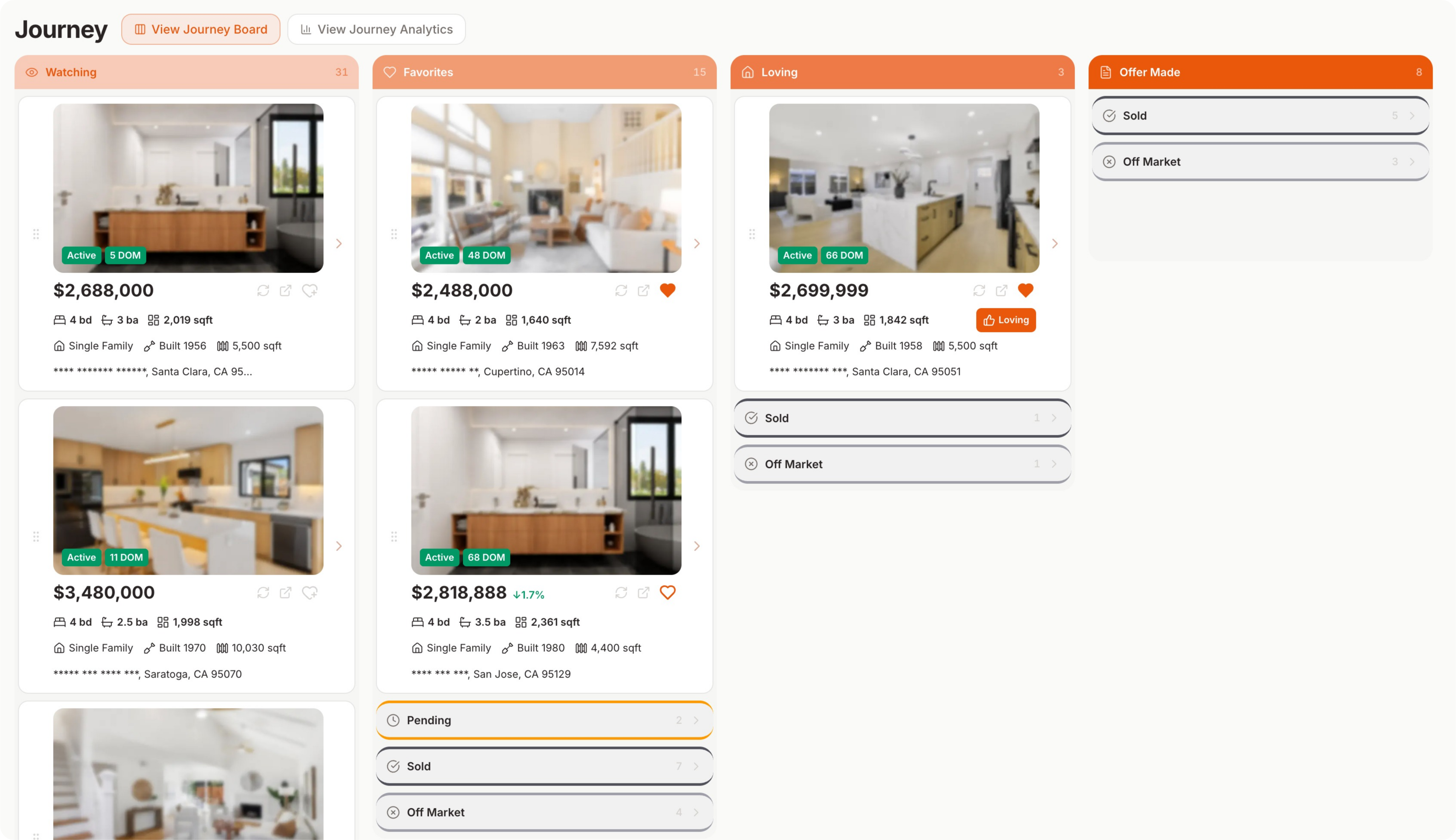
Four stages, left to right: Watching, Favorites, Loving, Offer Made. Each header counts the homes in that stage.
Ratings shape the board, or you can rearrange it
Your Heart Rating and Impression Rating for each home on your Watch List shape your Journey Board automatically. You can also rearrange homes by hand, adjusting a home's stage with the bigger picture in front of you.
Your ratings and offers sort the board for you
You do not have to arrange the board by hand. A home lands in the right column on its own, based on what you have already told OpenHomeVue:
- Heart a home and it moves to Favorites.
- Rate a home Loving and it moves to Loving, favoriting it too if it was not already.
- Rate a home Pass and it archives, leaving the board entirely rather than just changing columns.
- Log an offer on a home and it moves to Offer Made.
See rating a home for how the heart and the Loving / Maybe / Pass picker work.
Move a home forward or back with drag-and-drop
Changed your mind about a home, or just want to place it yourself? Pick up its card and drop it into another column.
- Drag it forward (to the right) and the home moves up without losing where it has been. Moving forward is additive.
- Drag it back one stage (to the left) — say, Loving to Favorites — and only the stage above where you dropped it falls away; Favorites stays put.
- Drag it all the way back to Watching, though, and it is a clean reset: Favorites and Loving both clear, so you are starting over on that home.
Every home always keeps at least one stage, so a card can never fall off the board by being dragged.
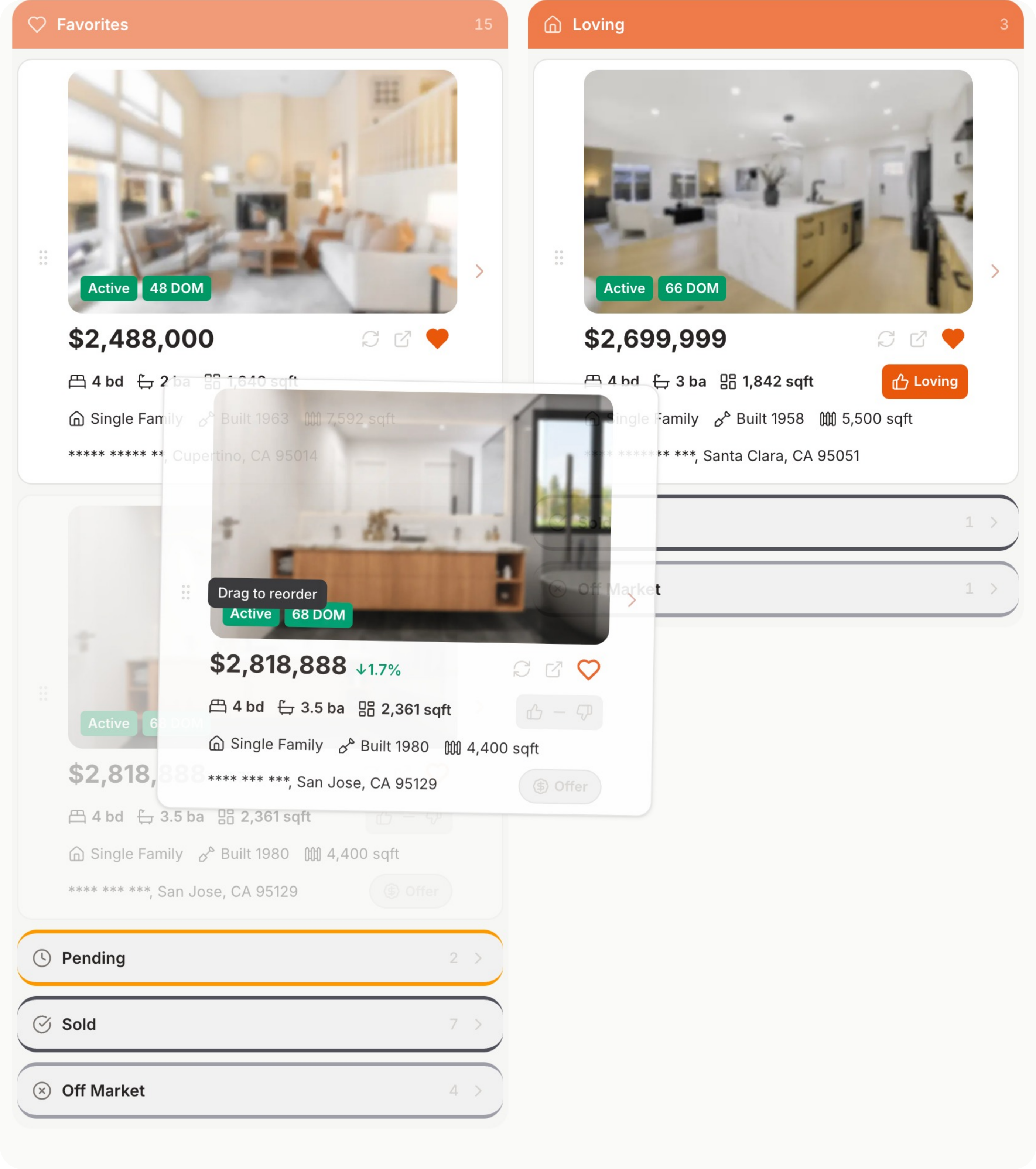
Pick up a card and drop it in another column to move it.
Dragging is simply the manual override for when you want to place a card yourself. Whether you rate a home on your phone or on the web, the board reflects it the next time you open it.
Open any card for the full details
The board is for the big picture, but the detail is only one click away.
- Click any card on the board.
- A detail panel opens beside its column, with tabs for the home's Details and My View.
- From there you can read the key considerations, the schools, the neighborhood, and your notes, all without leaving the board.
- Click the chevron again to close the detail panel and zoom back out to the board.
Each card also carries quick actions: heart it, rate it, add it to a trip or a comparison, refresh its listing data, archive it, or remove it. Archiving a home takes it off the board while keeping its history.
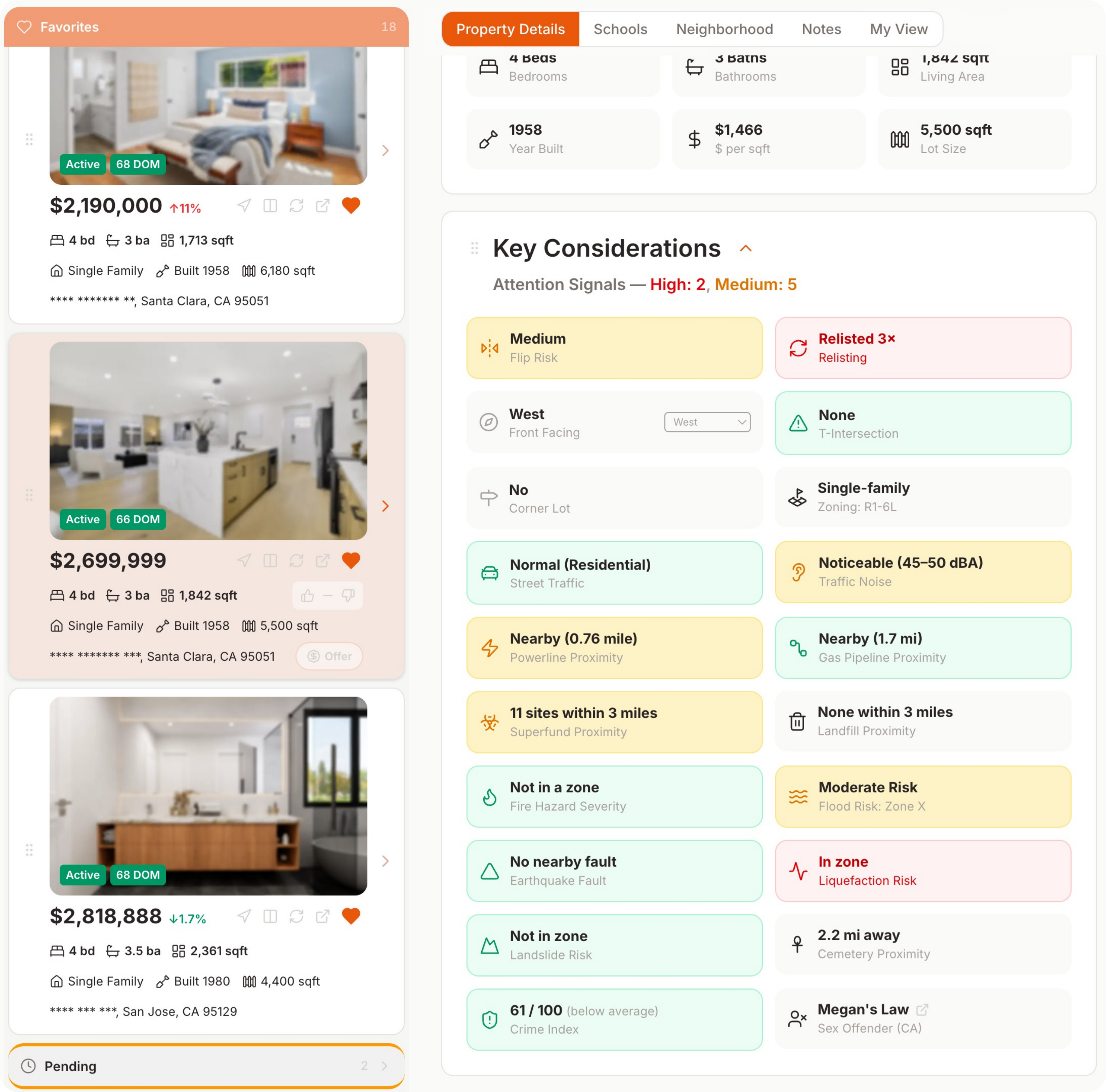
Selecting a card opens the tabbed detail panel beside its column, so you can dig in without leaving the board.
Related how-tos
Updated Jul, 2026