Save a Home to OpenHomeVue
From a listing you found to your own research journal in a few seconds
5 min read
Every home search starts alike: a browser full of listing tabs, or a favorites list inside your listing search app that does not do much beyond sit there. Finding listings is the easy part. Once the search narrows to a few homes you actually care about, the real research, and the real home-buying journey, is just beginning.
OpenHomeVue is built for that journey. Save a listing and it gets 20 key considerations of due diligence research, deep insights about the schools and the neighborhood, a place for your contextual notes, and a spot in your organized home-buying journey, all in one card.
This article walks through the first step, saving a home, on both the mobile app and the web app.
On your phone: 2-tap share from the listing app or browser
Found a home you like in your mobile browser or a listing app? Save it to OpenHomeVue with a 2-tap share.
- On the listing page, tap the Share button.
- Pick the OpenHomeVue icon from the share sheet.
- OpenHomeVue opens with the capture preview: photos, price, and the 20 Key Considerations research results.
- Like what you see? Tap Save to Watch List. The home lands on your Watch List and on your map.
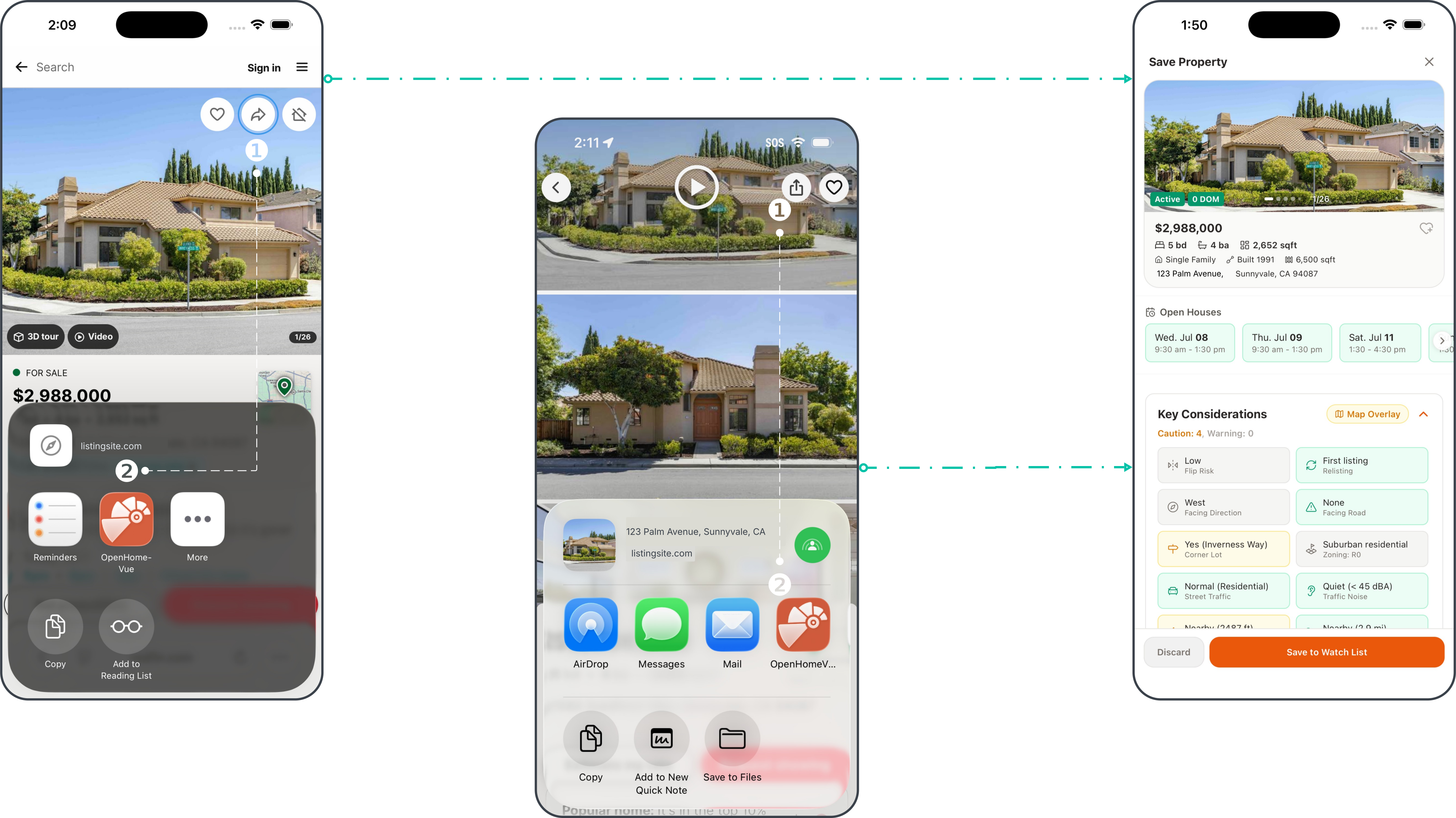
Two taps from your browser or listing app, and OpenHomeVue opens with the capture preview.
On your phone: add by listing URL
Have the listing link handy instead? Copy and paste does the same job.
- Copy the listing link from your browser or listing app.
- Open OpenHomeVue and tap the + button on the Watch List tab.
- Paste the link and tap Capture listing.
- The preview opens with the 20 Key Considerations research results, along with the school and neighborhood insights.
- Like what you see? Tap Save to Watch List.
On your phone: add by address
Seen a coming-soon yard sign? Come across an off-market property? No listing link at all? The address alone is enough.
- Tap the + button on the Watch List tab.
- Start typing the address and pick the correct one from the suggestions.
- Tap Add to Watch List. OpenHomeVue runs the 20 Key Considerations research and, if the home is actively listed, opens a preview with the details from the best-matching listing site.
- Like what you see? Tap Save to Watch List. If the home is not listed anywhere, the address saves directly, research included; the listing details join later if a listing appears.
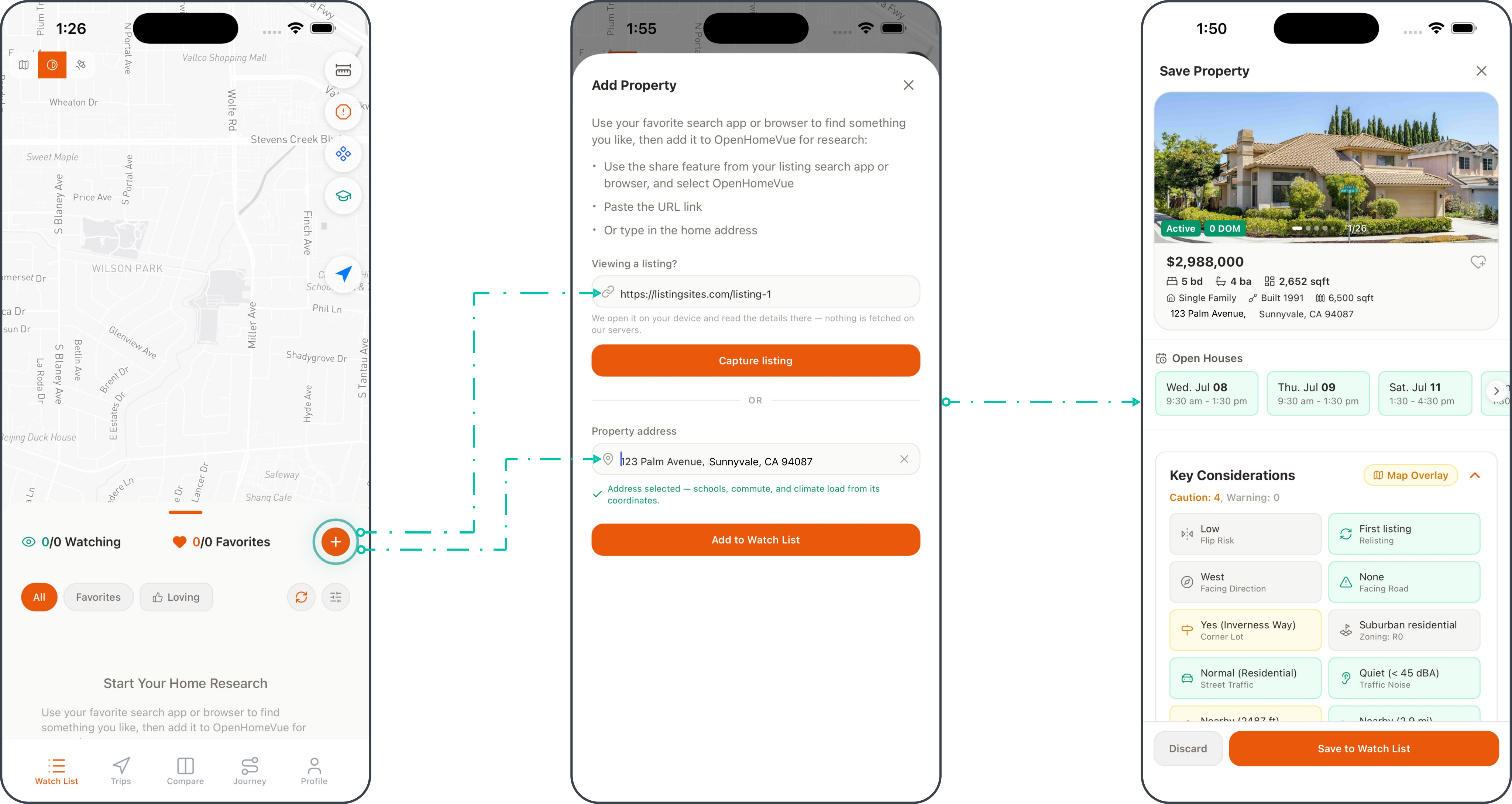
One sheet, two ways in: paste the listing link or type the address. Both end at the same capture preview.
On the web: the bookmarklet
If you browse listings on a computer, set this up once and saving becomes a single click.
- Sign in at app.openhomevue.com and click Add Property on your Watch List.
- Under Save from a listing page, drag the Save to OHV button onto your browser's bookmarks bar. (Press Cmd+Shift+B or Ctrl+Shift+B if the bar is hidden.)
- Browse your favorite listing sites as you normally do. On any listing you like, click Save to OHV in the bookmarks bar.
- A small OpenHomeVue window opens with a preview of the key findings and adds the home to your Watch List.
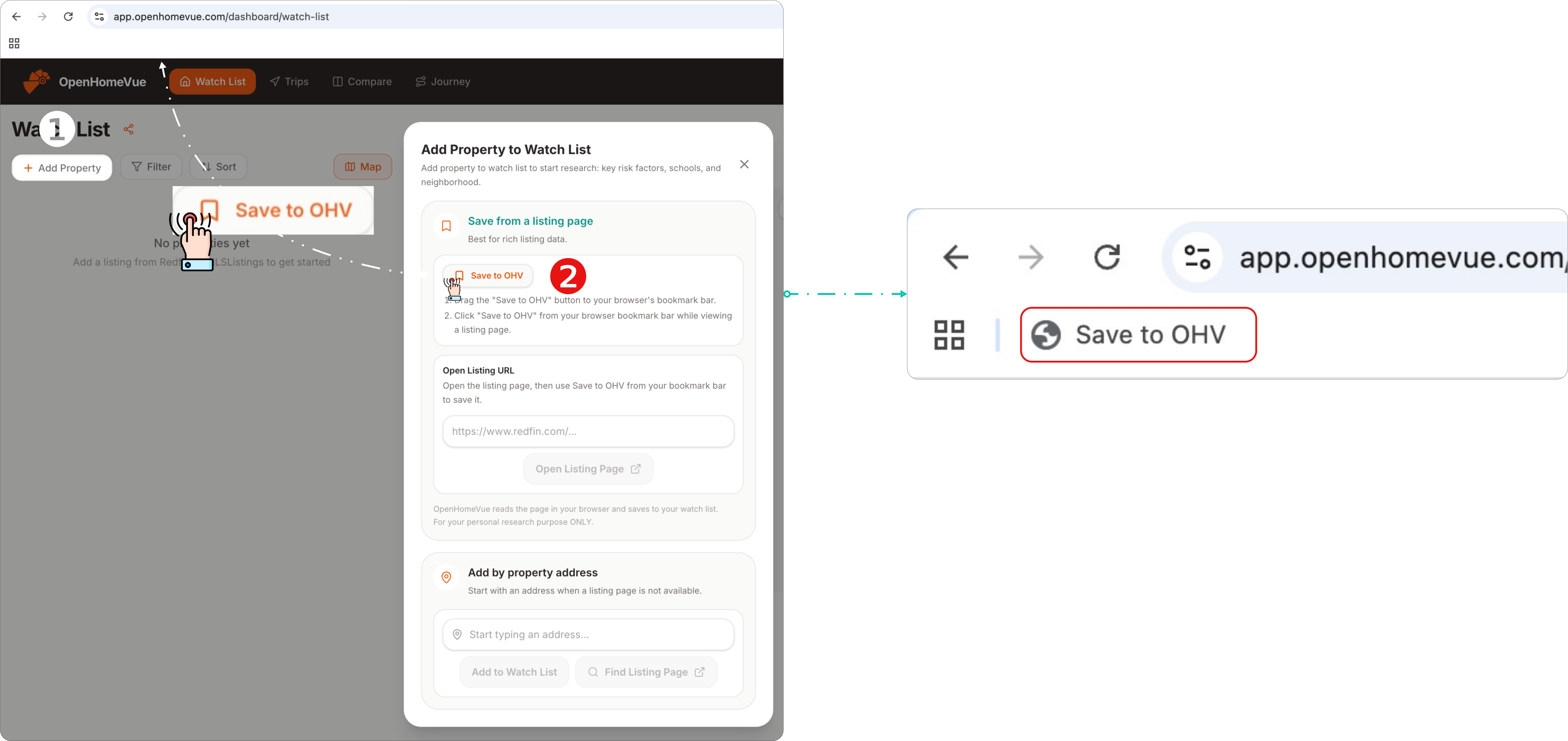
One-time setup: open Add Property, drag Save to OHV onto your bookmarks bar.
On the web: add by listing URL
Someone texted you a listing link? Pair it with the bookmarklet.
- Click Add Property on your Watch List.
- Paste the link into the Open Listing URL field and click Open Listing Page.
- The listing opens in a new tab. Click Save to OHV in your bookmarks bar there, and the preview window takes it from that point.
On the web: add by address
Adding by address works on the web too.
- Click Add Property on your Watch List.
- Under Add by property address, start typing the address and pick the correct one from the suggestions.
- Click Add to Watch List to save it directly, or Find Listing Page to let OpenHomeVue find the best-matching listing first.
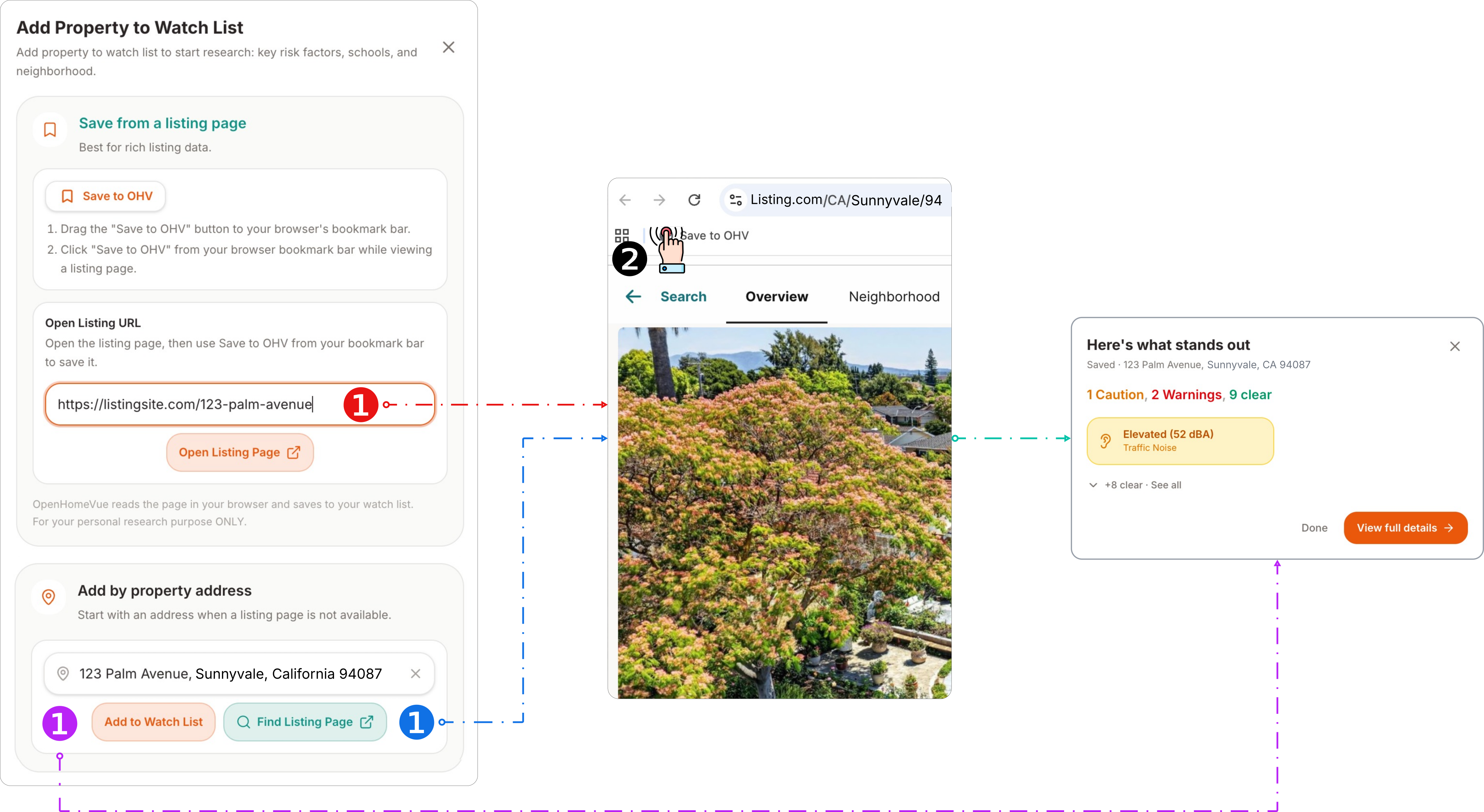
Three ways from the Add Property dialog. Red: paste the listing link and open it. Blue: let OpenHomeVue find the listing page. Purple: save the address directly. Red and blue finish with one click on Save to OHV.
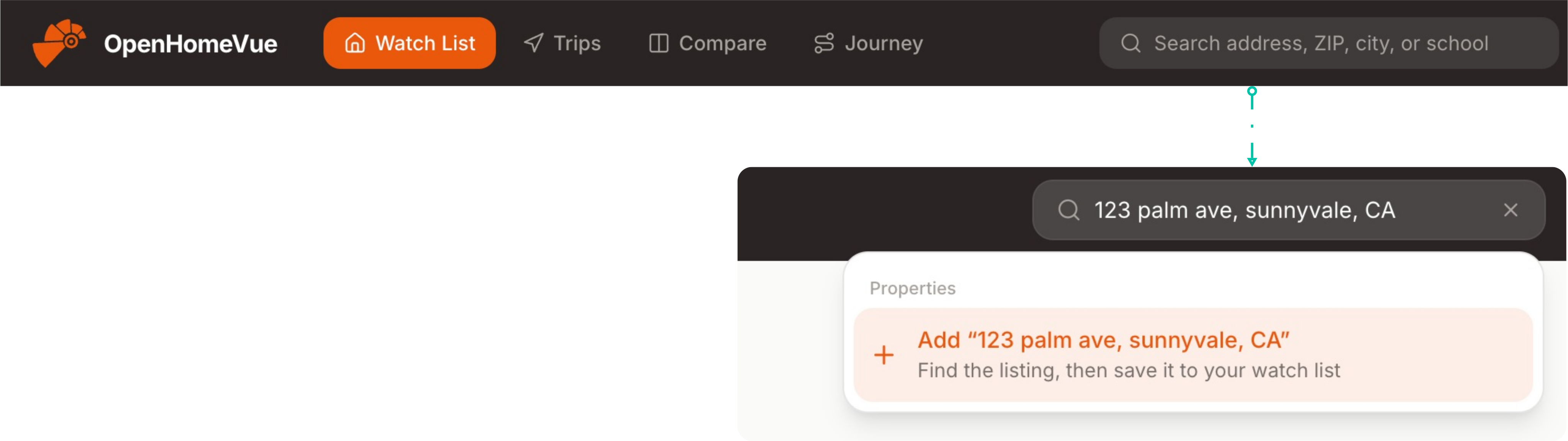
The shortcut: type an address in the search box on any dashboard page and pick Add.
See your home-buying journey unfold with OpenHomeVue
The moment a home is on your Watch List, OpenHomeVue starts working on it:
- The Key Considerations card fills in with the insights around the address: its flood zone, fire hazard severity, nearby power lines and landfill sites, and more.
- The Schools card presents the assigned and nearby schools, each with deep insights on enrollment, staffing, student demographics, and academic performance.
- The Neighborhood insights show the economics and demographics of the census tract surrounding the home.
- The home appears on your Map, where you can turn on overlays to visualize risks, school locations and boundaries, and neighborhood stats.
- The card is ready for your notes and photos whenever you need them.
One save, and the messy-tabs phase of your search is over. Every home you like, researched, organized, in one place with OpenHomeVue.
Related how-tos
More walkthroughs for the research phase are on the way. In the meantime:
- Explore the Key Considerations articles behind every card on your saved homes.
Updated Jul, 2026