Refresh a Home from Its Listing
Prices move, statuses flip: keep every saved home current
4 min read
A saved home is a snapshot, and the market does not hold still for it. The price drops on Thursday, an open house gets added for Sunday, and the listing quietly goes pending while you are still comparing kitchens.
OpenHomeVue helps you keep your Watch List up to date with refresh. Point it back at the listing you saved, and it updates the price, the status, the photos, and the open-house times, then shows you exactly what changed. Nothing runs behind your back: you refresh when you want the latest, and the data comes from the listing page in your own browser, for your personal research only.
This article walks through the different ways to refresh one home, or your whole Watch List.
Refresh a home, on the Mobile App or Web App
Both platforms refresh from the same place you saved: the live listing page.
On the Mobile App: Refresh from Source
- On your Watch List, open the property's ⋯ menu.
- Tap Refresh from Source.
- The listing re-opens in the Update Property screen, with a What's changed summary since your last save.
- Confirm with Update Watch List.
Sharing an already-saved listing from your mobile browser or a listing app works too: OpenHomeVue recognizes the home and turns the save into an update automatically.
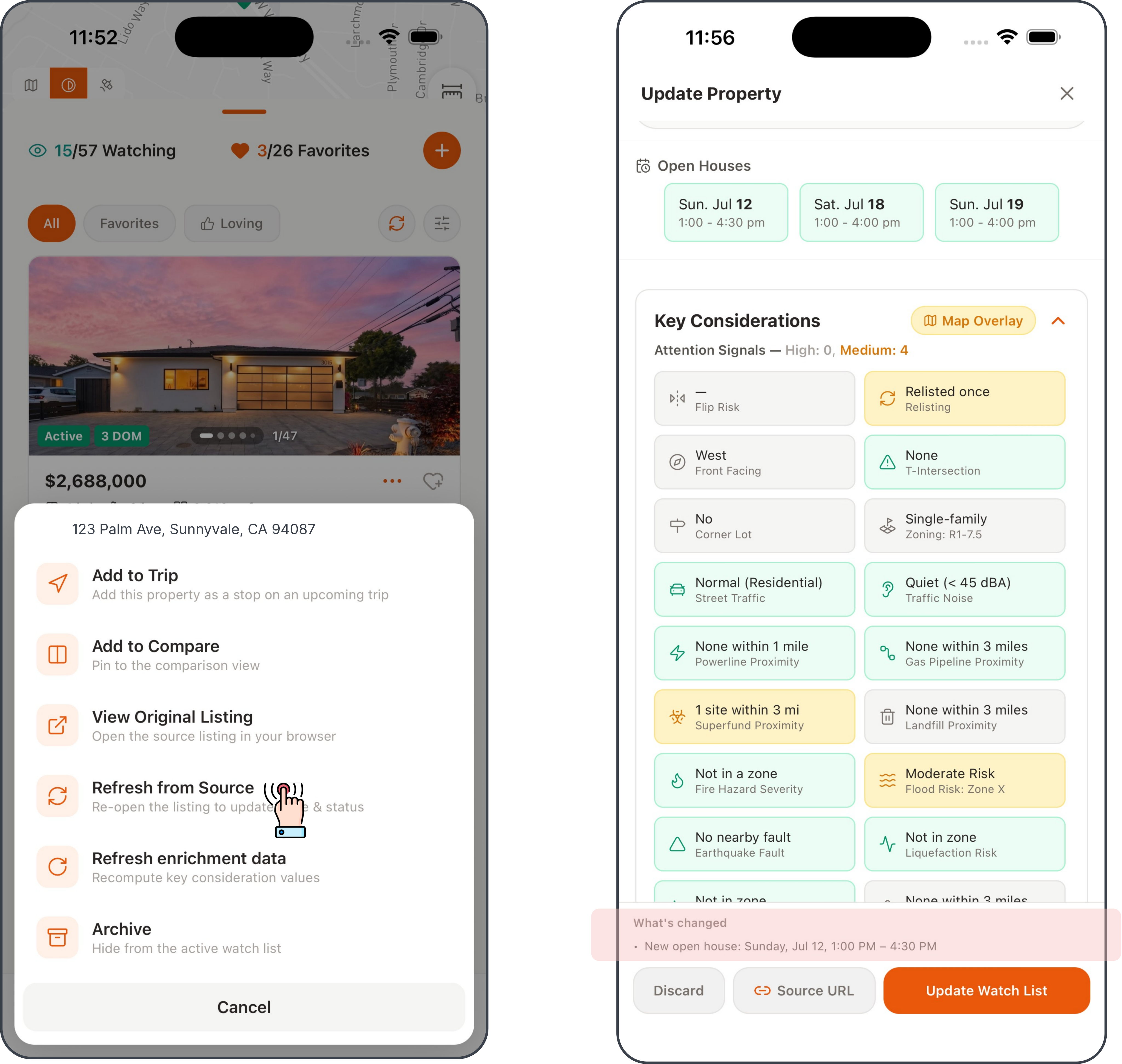
One tap re-opens the listing and pulls the latest price, status, photos, and open houses.
On the Web App: refresh with the bookmarklet
- On a Watch List card, click the Refresh listing data button.
- In the Refresh dialog, click Open Listing; the saved listing page opens in a new tab.
- On that page, click Save to OHV in your bookmark bar, the same button you use to save new homes to your Watch List.
- When the popup confirms the update is saved, you are done; the card reflects the latest listing.
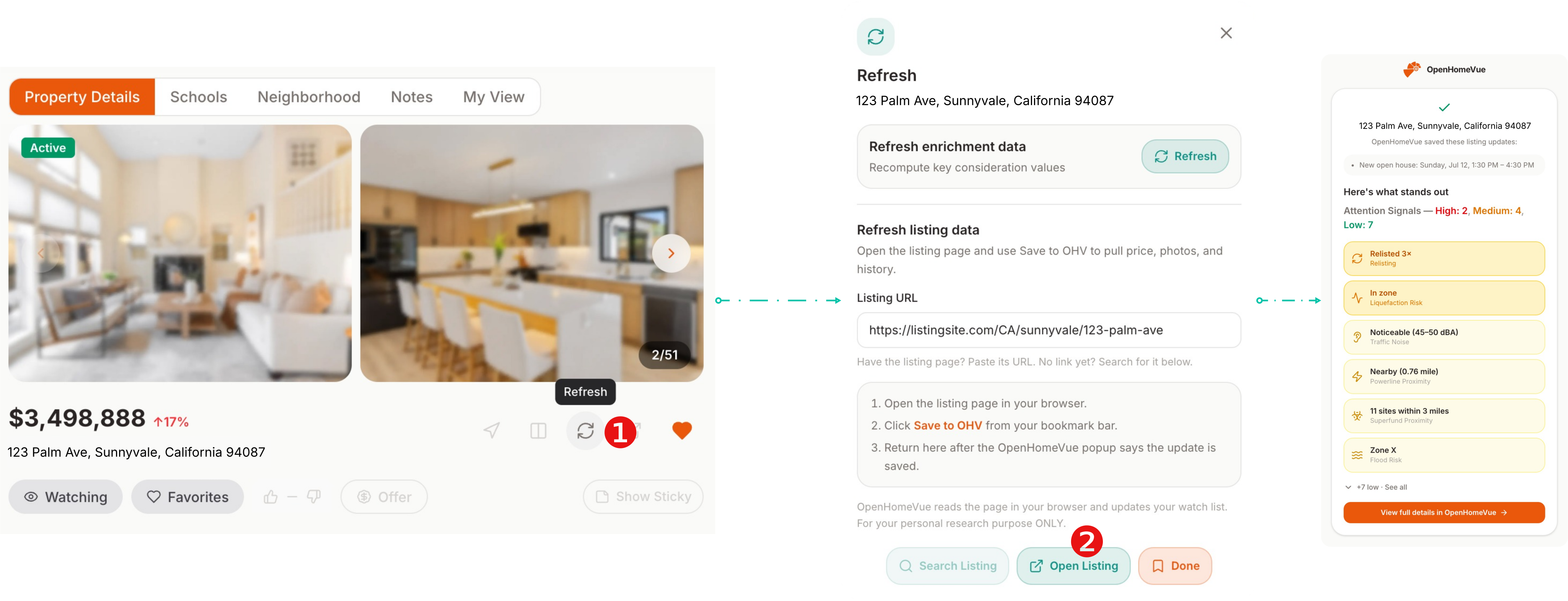
The Refresh dialog points you back at the listing; Save to OHV pulls the update.
Read the "What's changed" summary
Before anything is written, the Mobile App shows you the delta, not a wall of data:
- Price changes, with the old and new numbers: drops in green, increases in red.
- Listing status changes, like Active turning into Pending.
- New open houses that were not on the listing last time.
Otherwise, the summary reads "No changes since your last save."
Mobile App: update the whole list at once
Watching a dozen homes? Refreshing them one at a time gets old.
- On the Watch List, tap the Update button.
- A pre-flight sheet shows how many listings will be checked and the estimated time.
- Tap Start Updating, and OpenHomeVue walks your active listings one by one, pausing at each home that changed so you can review and apply it.
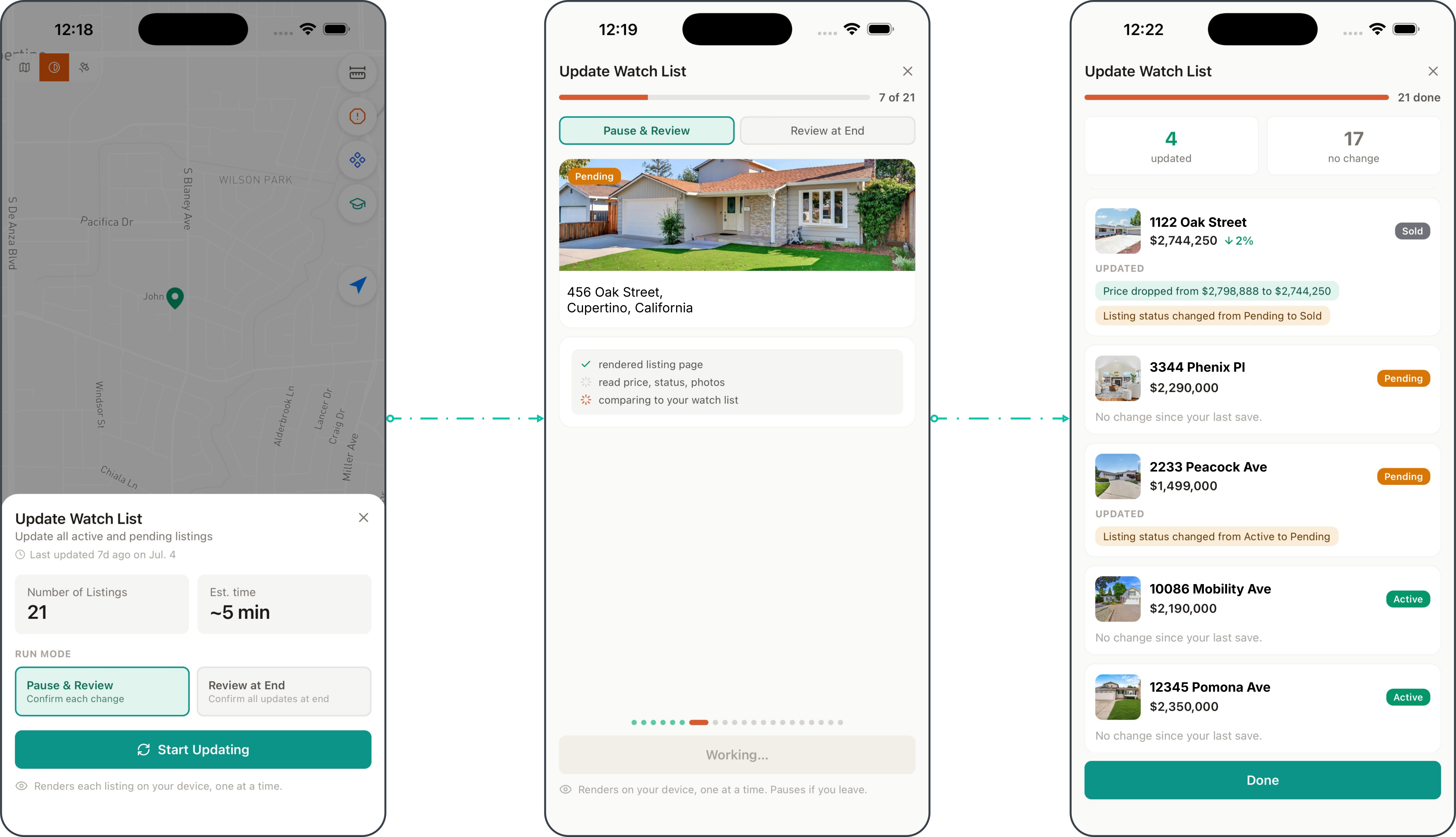
One pass over every active listing, with a review stop at each change.
Related how-tos
Updated Jul, 2026