Take Notes
Capture every thought, question, and finding, and pin it to what it is about
5 min read
A home search runs for weeks and months, and it never stops producing things worth remembering: a thought while reading a listing, a question you want answered, the reason you have strong feelings about a home, the observations on a home tour. They quickly fade if not noted down.
OpenHomeVue keeps all of those in one place. On the home they belong to, and better, on the exact piece of information they are about: the listing price or sales history, a key risk factor such as flip risk, or a nearby assigned school. The notes stay where you pinned them, so you know the exact context when you view them later. Or view them all in one place, in the home's Notes section.
This article covers how to create notes on the Mobile App and the Web App, pin them to what they are about, add photo notes, and keep a note that travels with a school.
Take a general note about the home
- Open your Watch List and select the home you want to take notes on.
- The orange Sticky Notes floating button sits on top of the details panel.
- Click or tap it to take a general note about the home.
- Choose Text note or Photo note.
- Enter your note, and Save.
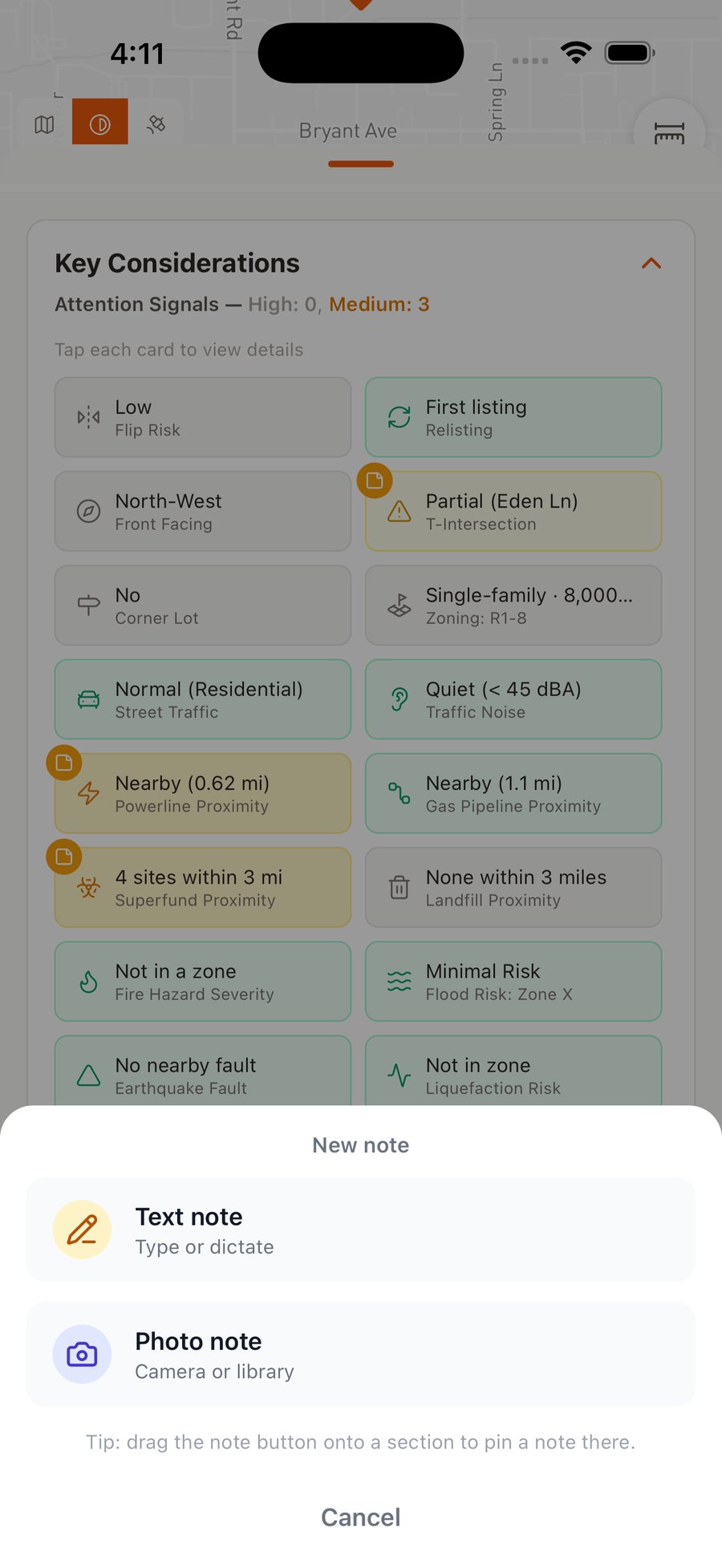
Tap the sticky note for a quick text or photo note on the home.
Contextual Notes: pin a note to what it is about
Besides taking a general note about the home, you can pin a note to a specific subject to create Contextual Notes. Drag the orange Sticky Notes button onto a Key Considerations card or a school card, watch the target highlight, and release: the note is anchored there, and a small sticky badge reminds you of it.
Tap the note badge to open and read the notes where they are anchored, so you never lose the context.
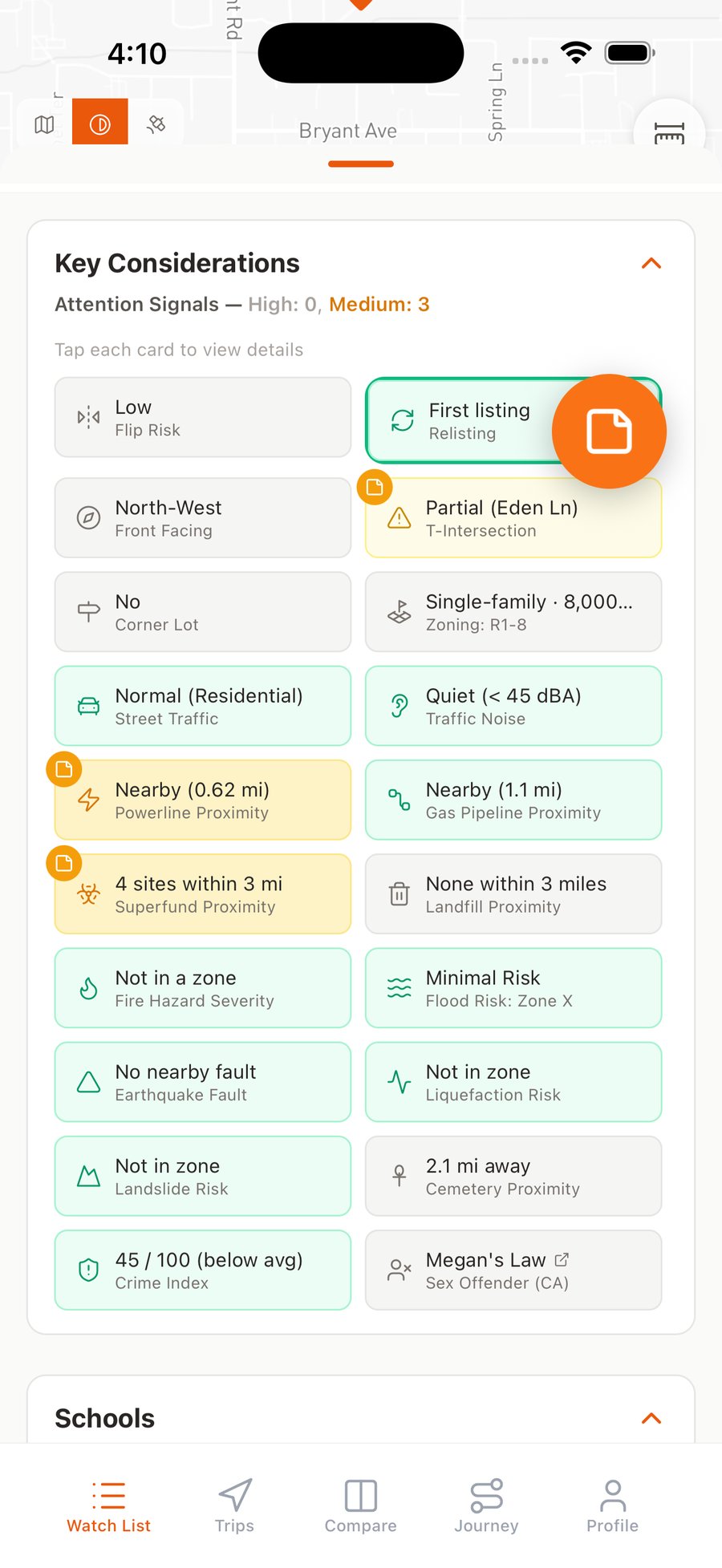
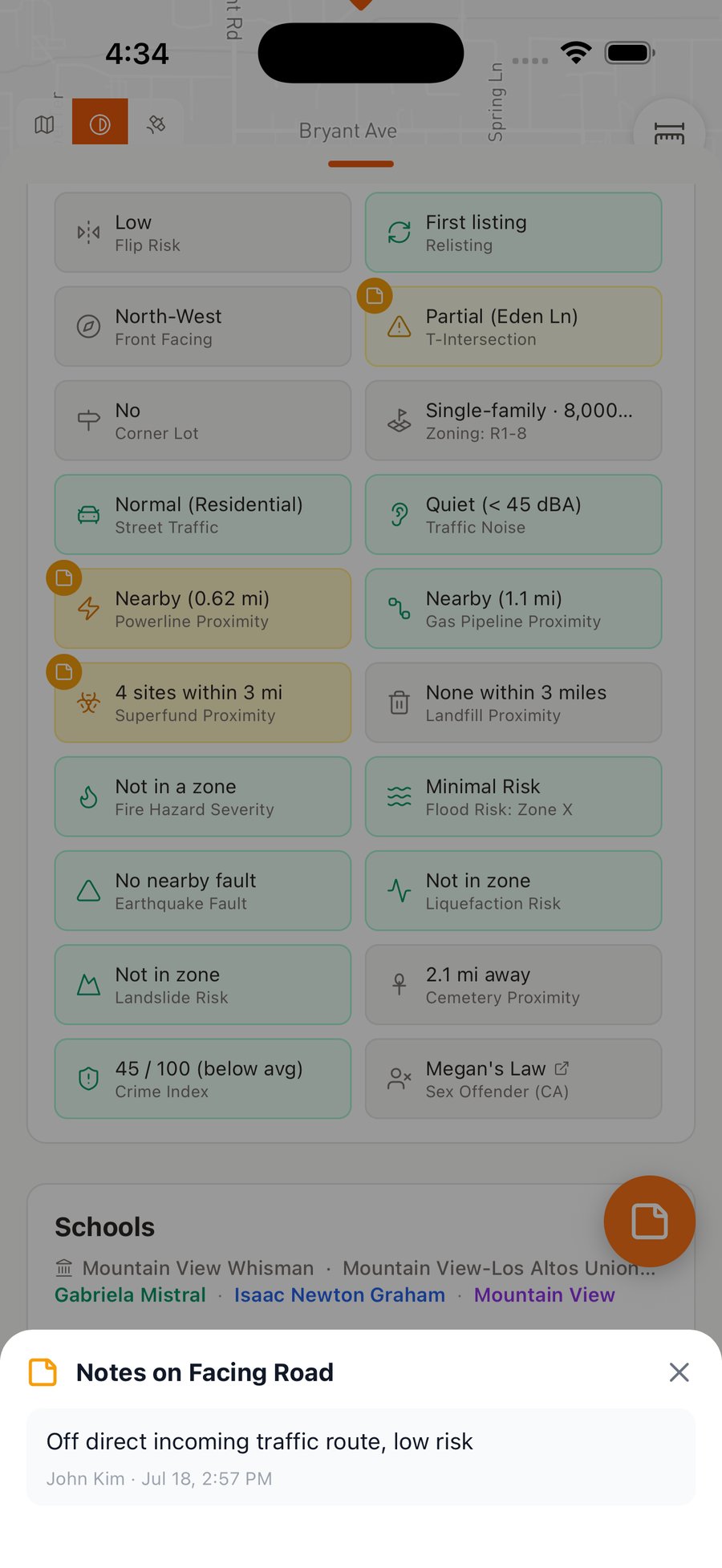
Drag the sticky onto a card to pin a note there, then tap the badge to read it.
Photo notes: when a picture says it for you
A picture is worth a thousand words. Taking a photo note with OpenHomeVue is a breeze. Tap the Sticky Notes floating button and select Photo note, then Take Photo (Mobile App only) or Choose from Library. Add a one-line caption if you like; on the Mobile App you can also tag photos by room and attach longer notes to each one in the photo notes gallery.
Everything lands in the home's My Photo Notes grid, next to your text notes, whether it is a shot you took walking the home, a screenshot of a listing detail, or a page from the disclosure packet.
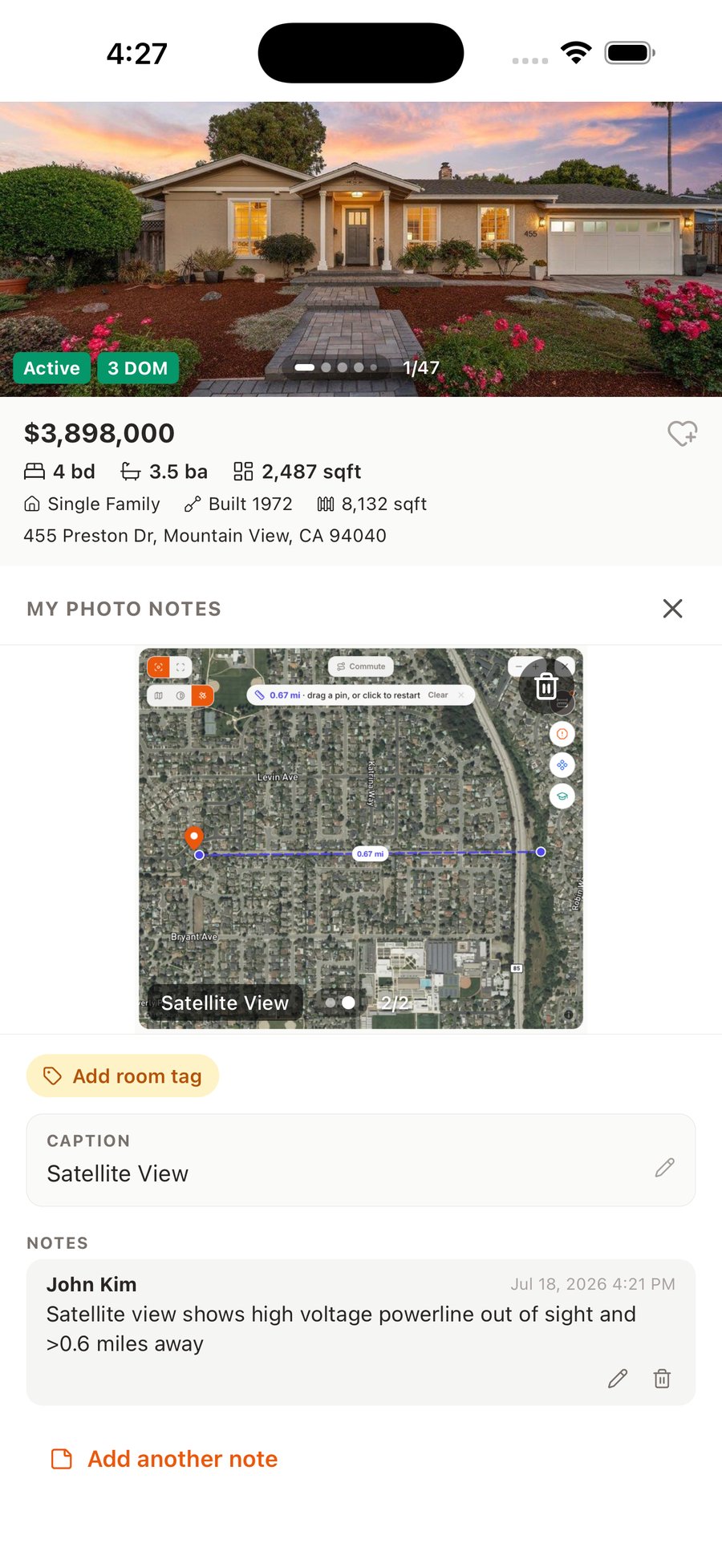
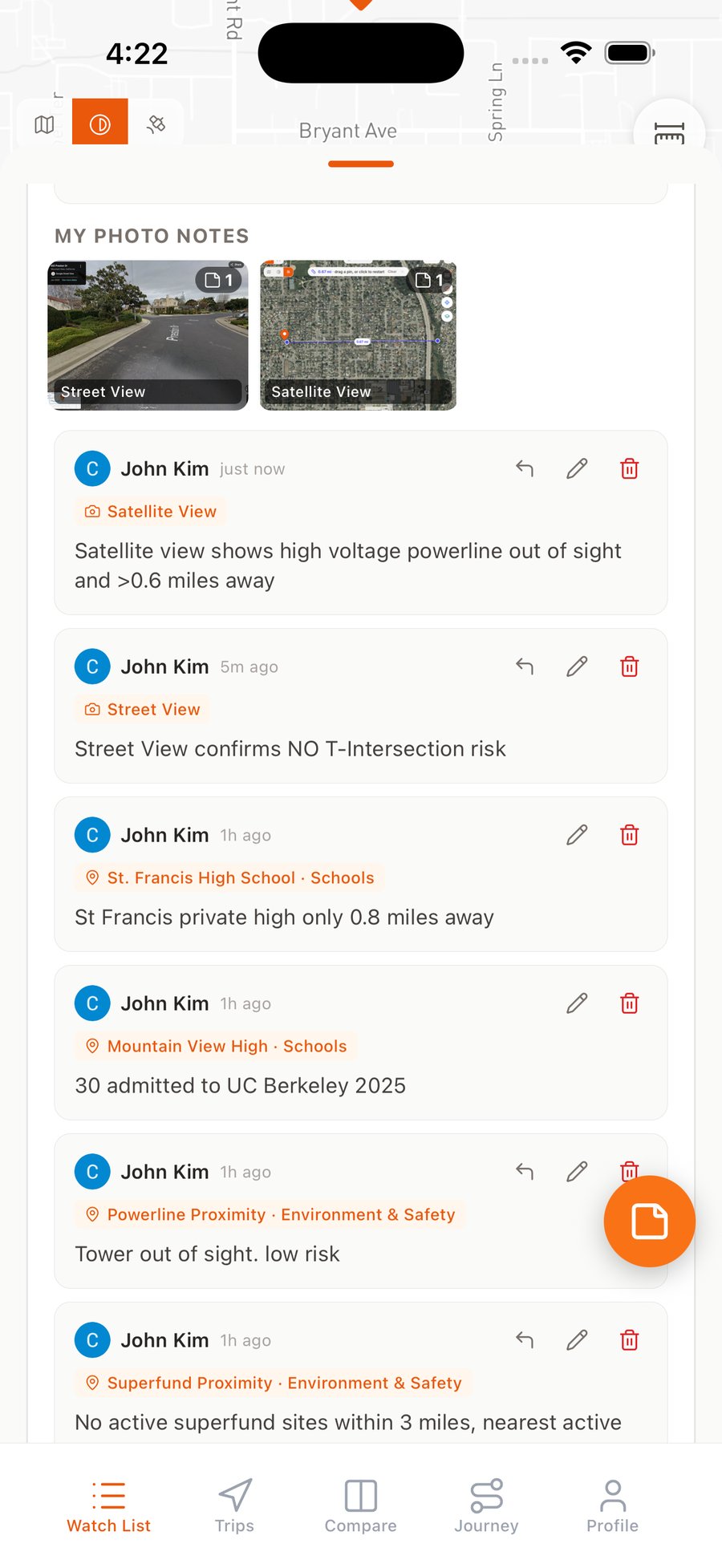
Caption and tag a photo note, then find it again in the gallery with its notes.
School notes travel with the school
Drag a note onto a school card and a little magic happens: the note attaches to the school, not the home. Look into a campus once, write "principal says the music program returns next fall," and that note appears on the same school's card for every home you save in its zone.
One conversation with a district office can inform five candidate homes. That is the point.
Notes, organized and easy to find again
Sometimes one note is not enough for a topic. Reply to a note with new findings, or the answer to a question, so they stay together when you review them later.
Every note lives in each home's Notes section: newest first, each Contextual Note with its anchor tag, replies threading underneath. Edit or delete any note, and everything syncs between the Web App and the Mobile App, so a note you tapped out on your phone is waiting on the big screen when you sit down to compare.
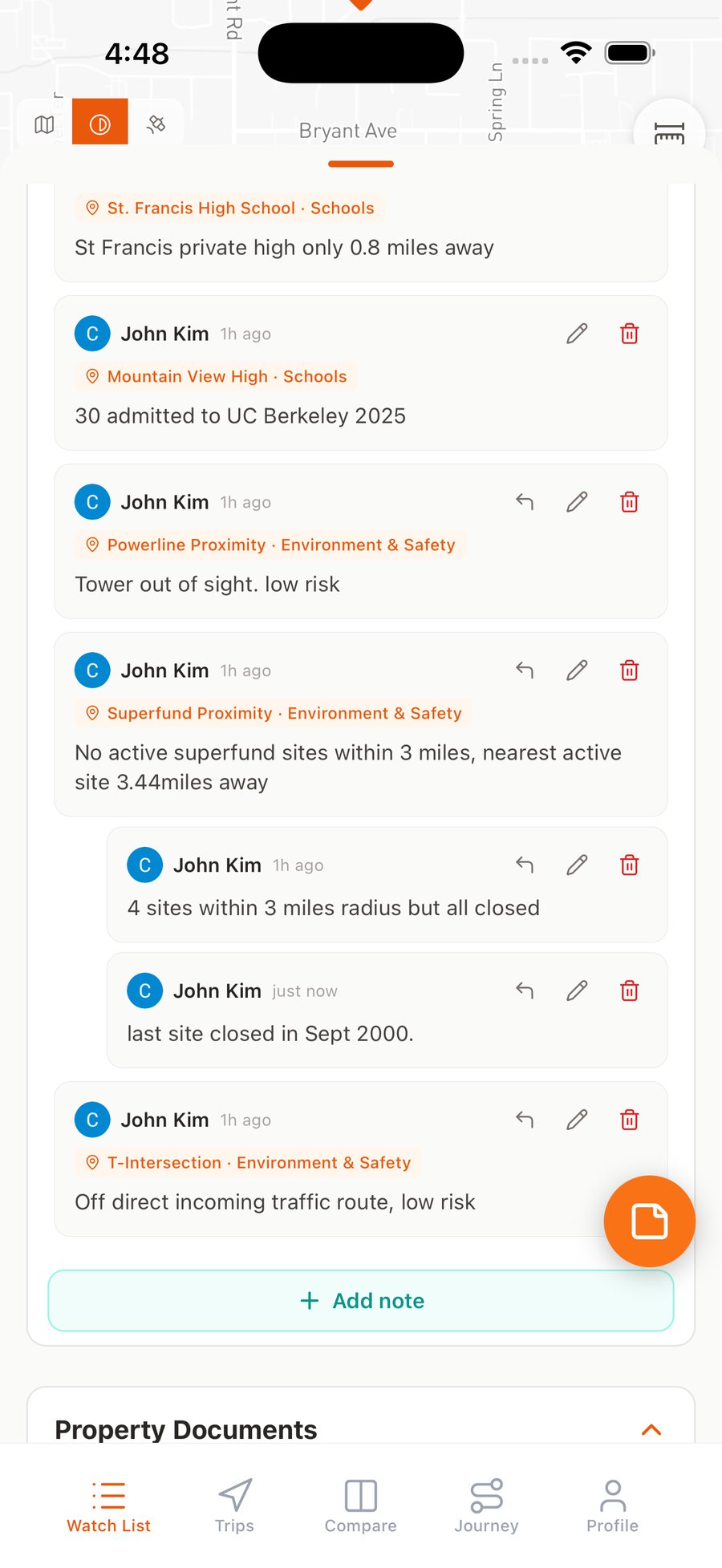
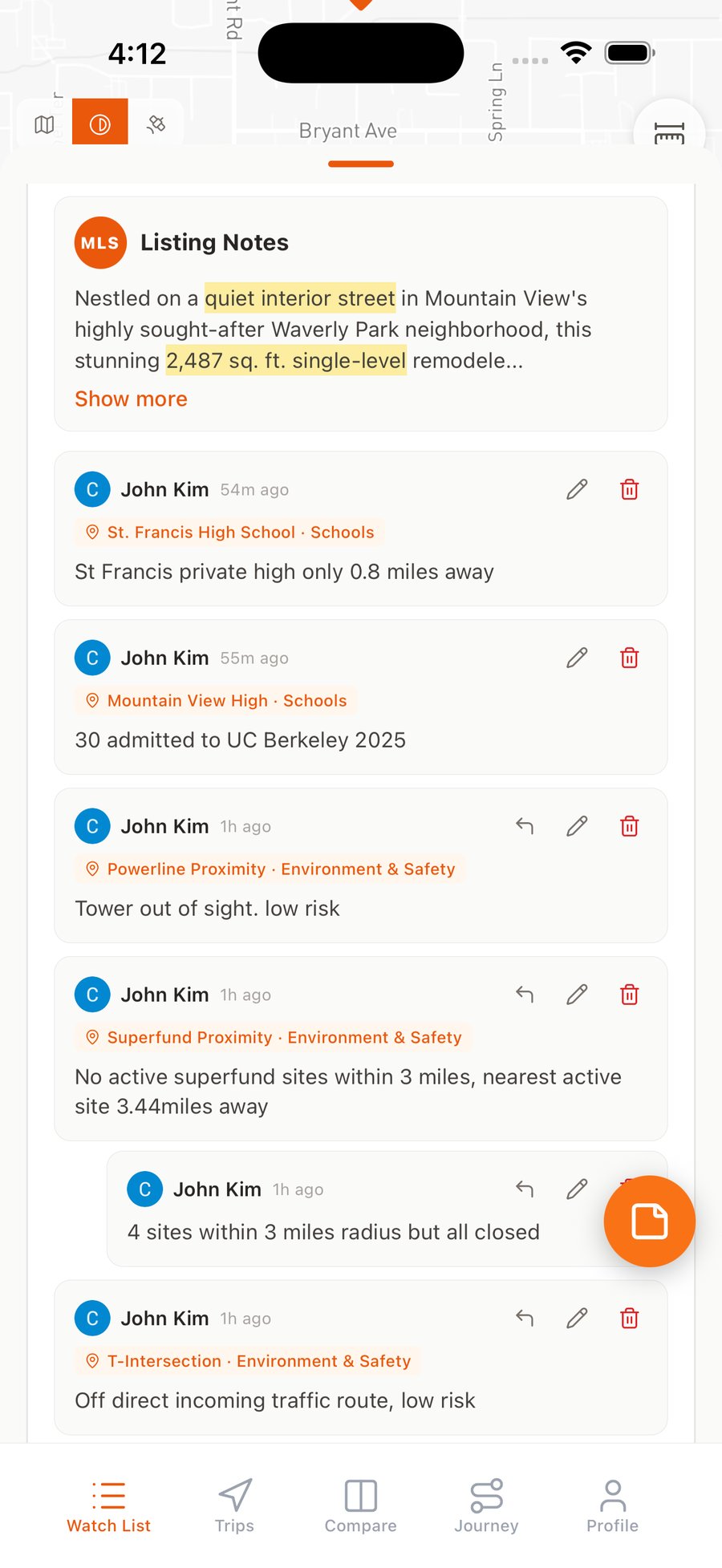
Reply to a note to keep findings together, and everything lands in the Notes section when you look for it again.
Related how-tos
Updated Jul, 2026